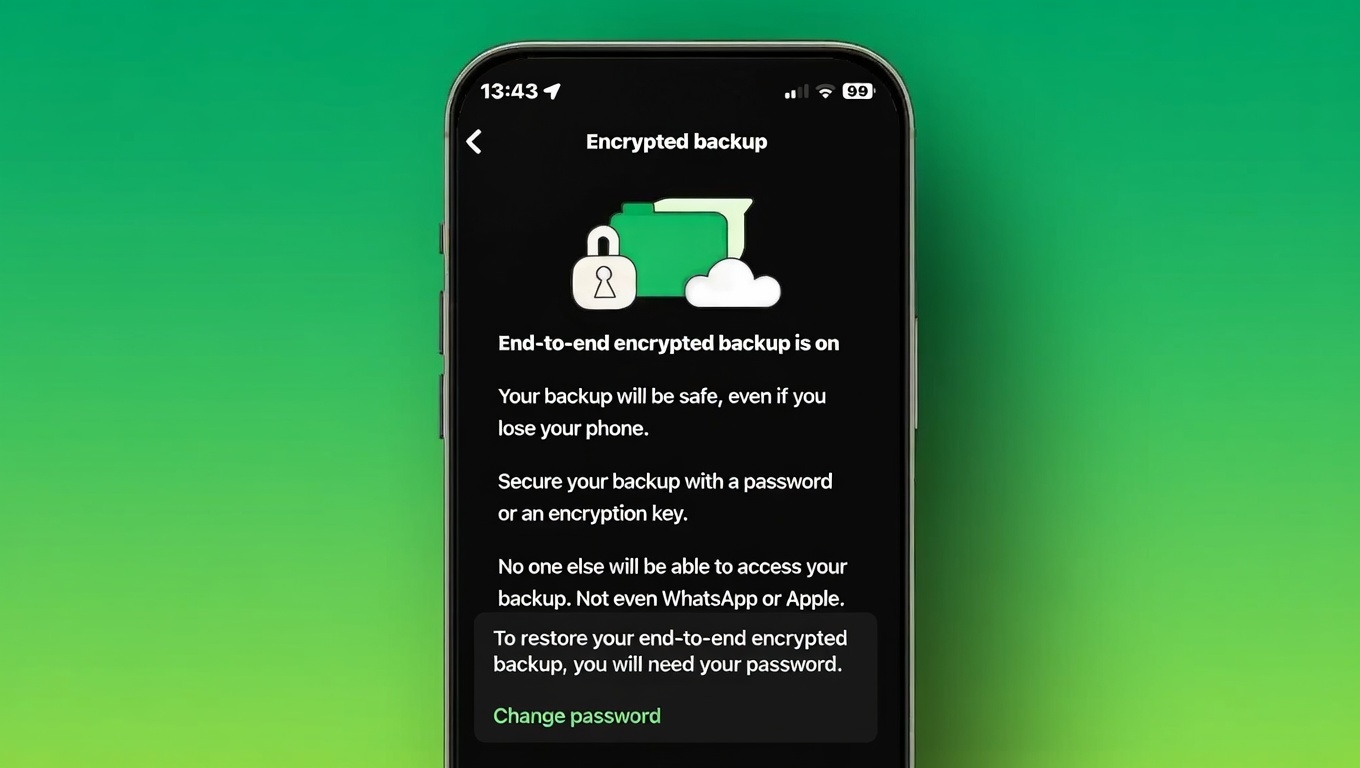
Every day, people use WhatsApp to send messages, photos, videos, and personal details. These conversations are private, and keeping them secure is important. While WhatsApp already protects messages, backups also need proper security. That is where end-to-end encrypted backups help.
Many users never check their backup settings. Because of this, their chat history may not be fully protected in the cloud. This guide explains what encrypted backups are, why they matter, and how to enable them on both Android and iPhone in a simple way.
Also read: How to Record Phone Calls on Android and iPhone (Simple & Safe Guide)
Why WhatsApp Security Is Important
WhatsApp is part of daily life for millions of people. Chats often include personal talks, family photos, and sensitive information. If this data is not protected, it can be misused.

WhatsApp Tracking
Analyzing WhatsApp data for
WhatsApp Scan Complete
⚠️ This is a simulated scan. Real-time WhatsApp tracking is restricted by privacy policies.
WhatsApp uses end-to-end encryption for messages. This means messages are locked before they leave your phone and unlocked only on the receiver’s device. No one else can read them while they are being sent.
However, backups are a different matter and need extra attention.
What End-to-End Encryption Means
End-to-end encryption keeps messages private from start to finish. Your message is turned into unreadable code on your phone. It stays protected while traveling through servers. Only the person receiving it can unlock and read it.
This protection applies to text messages, calls, photos, and videos. It is the core of WhatsApp’s security system.
Why Backups Need Extra Security
Chat backups are saved on cloud services like Google Drive or iCloud. These backups are not always protected by WhatsApp’s default encryption. If someone gets access to your cloud account, they may also access your chat backup.
Weak passwords and stolen accounts make cloud data an easy target. Encrypted backups solve this issue by locking your backup with a password that only you know.
What Is WhatsApp Encrypted Backup
Encrypted backup adds a strong lock to your entire chat history stored in the cloud. You create a password, and that password protects the backup.
Neither WhatsApp nor the cloud service can open this backup. Only you can restore it using the password you set. This keeps your chat history private even if your cloud account is compromised.
How Encrypted Backups Work
When you turn on this feature, WhatsApp creates a special encryption key. Your password protects this key. Without the password, the backup cannot be opened or restored.
If the password is lost, the backup is lost too. No company or support team can recover it. This system gives full control to the user.
Why Your Backup Password Matters
Your password is the only way to access your encrypted backup. If you forget it, your backup becomes unusable forever.
That is why it is important to:
- Choose a strong password
- Never share it with anyone
- Store it somewhere safe and private
A secure password means complete control over your backup.
How to Enable Encrypted Backup on Android
- Open WhatsApp on your Android phone
- Tap the three dots at the top
- Go to Settings
- Open Chats
- Tap Chat Backup
- Select End-to-End Encrypted Backup
- Tap Turn On
- Create and confirm a strong password
Once done, WhatsApp will encrypt your backup automatically.
Extra Safety Tips for Android Users
- Turn on two-step verification for your Google account
- Use a screen lock on your phone
- Keep WhatsApp updated from the Play Store
- Avoid installing apps from unknown sources
These steps add more layers of protection to your data.
How to Enable Encrypted Backup on iPhone
- Open WhatsApp on your iPhone
- Tap Settings at the bottom
- Select Chats
- Tap Chat Backup
- Choose End-to-End Encrypted Backup
- Tap Turn On
- Create and confirm your password
Your iCloud backup will now be encrypted.
Extra Safety Tips for iPhone Users
- Enable two-factor authentication for your Apple ID
- Keep your iPhone updated
- Use Face ID or Touch ID
- Never share your Apple ID details
These habits help keep your backup and account secure.
How to Create a Strong Password
A good password should:
- Be at least 8 characters long
- Include letters, numbers, and symbols
- Avoid names, birthdays, or common words
- Be different from your other app passwords
Do not save passwords in plain notes or messages. Write it down and keep it somewhere safe.
Important Warning About Password Recovery
There is no way to reset or recover an encrypted backup password. If it is lost, the backup cannot be restored.
This rule applies to both Android and iPhone users. Always handle your password carefully.
Signs Your Backup Is Not Encrypted
Your backup may not be protected if:
- Backup encryption is turned off in settings
- The backup restores without asking for a password
- Cloud storage shows easy access to backup files
If you notice this, turn on encrypted backup immediately.
How Encrypted Backups Improve Privacy
Encrypted backups make stolen data useless. Even if someone accesses your cloud storage, they cannot read the backup.
Cloud services cannot view your chats. WhatsApp cannot access them either. Only you can unlock the backup using your password.
Daily Habits for Better WhatsApp Safety
- Do not click unknown links
- Avoid files from strangers
- Lock your phone when not in use
- Never share verification codes
- Leave risky group chats
- Delete old and sensitive chats
Good habits work together with encrypted backups to keep your data safe.
Final Thoughts
WhatsApp already protects messages with strong encryption. But backups need extra care. Enabling end-to-end encrypted backups adds an important layer of privacy.
It keeps your chat history safe, even in the cloud. Take a few minutes to turn it on and choose a strong password. It is a small step that makes a big difference in protecting your personal conversations.
Very good